If your website isn’t fully accessible, you’re losing out on potential customers or clients. You’re also sending a quiet signal that your organization doesn’t care.
I’ve been a designer for almost 20 years, but even before that I was a part of web accessibility discussions in university. It’s not a new topic, so it’s surprising how many businesses still have issues on their sites.
In this article I’ll explain common accessibility problems that you can resolve without a developer, or with minimal support needed. This isn’t a comprehensive list; it’s intended to be a starting point if you aren’t ready for a complete website redesign.
1. Form fields
Form fields can be one of the most important elements on your website, as they’re almost always part of a conversion: contact forms, signing up for your email newsletter, booking a demo, requesting a quote, or completing checkout.
Form fields are where visitors become customers. If form fields have accessibility issues, they’ll also have poor completion rates – which directly impacts your profit.
Elements of a form field:
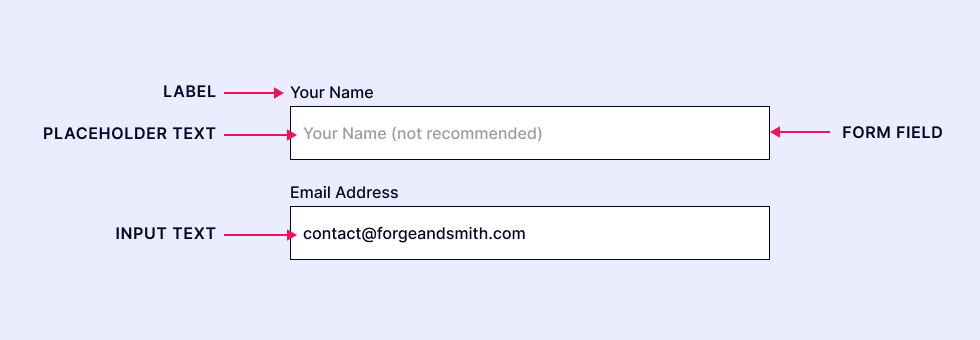
Here’s what you need to check on your forms.
Don’t Put Labels as Placeholders Inside Fields
This one is way too common. It might seem like a great way to achieve a more minimal and aesthetically pleasing design, by reducing the descriptive text above each field and instead, putting those instructions as placeholder text within each field.
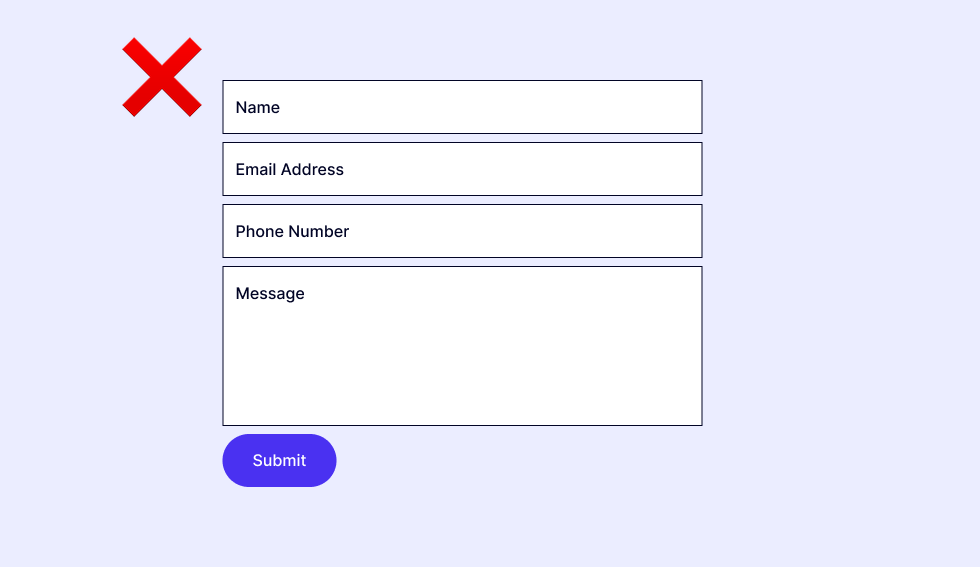
When placeholder text is used as the form field label, the words disappear as soon as the field is clicked or tapped. Now it’s just an empty field with no instructions. For a user with cognitive issues or a distracted user (which happens more than you might think), it becomes hard to determine the purpose of the field once the placeholder is gone.
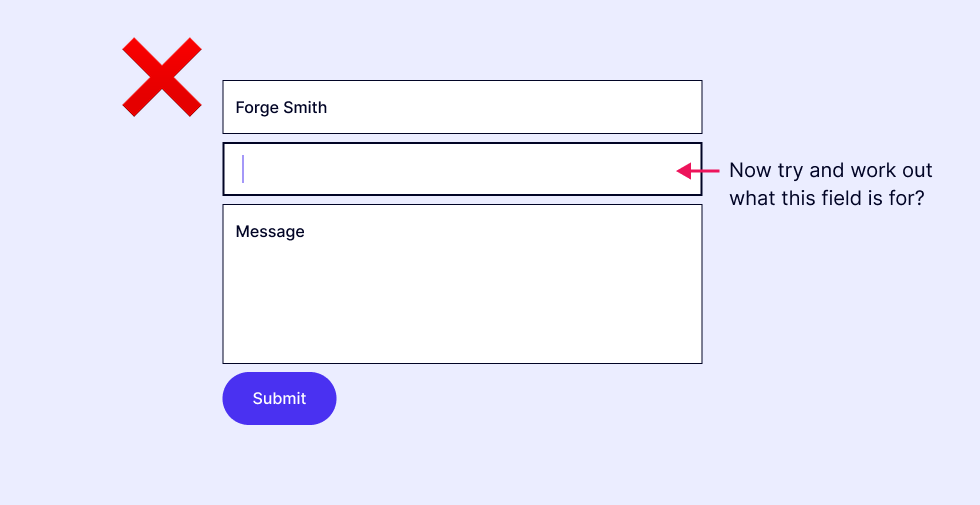
If the user skips a required field because they don’t know what it’s for, they’ll get an error message when they try to submit the form, and probably feel quite frustrated.
On longer forms, this practice makes it hard for a user to scan the whole form to make sure they didn’t miss anything. See: Placeholders in Form Fields Are Harmful for more insight.
At Forge and Smith, we plan forms at the UX design stage of our projects. I don’t recommend any placeholder text at all, and will advise our clients about the problems it can cause. When there’s a field that requires clear instruction on what to enter, that should be placed outside the input fields so it’s always visible to the user.
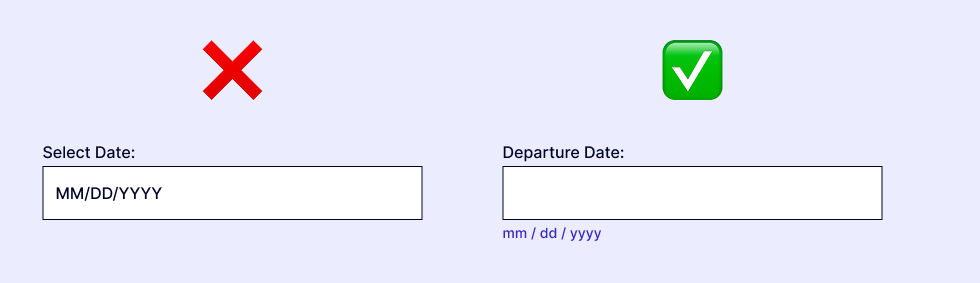
Depending on how your site is built, this might be quick and easy to edit. We use the Gravity Forms plugin for WordPress because anyone can edit any existing form, or create new forms and add them to pages. Other third-party embedded forms are also usually easy to edit, if you have access to the hosting platform.
Ambiguous Labels
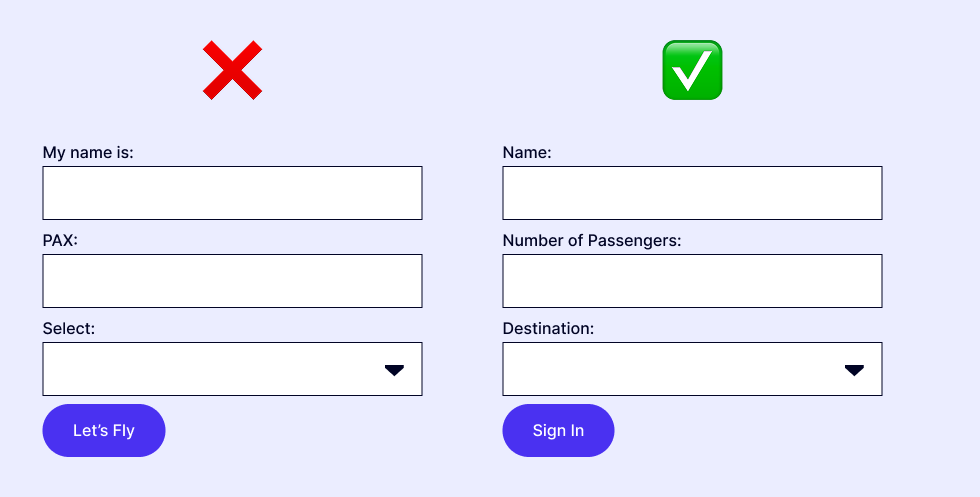
Labels need to be labels – clear instructions that anyone can understand. They aren’t a place to get creative with quirky or silly branded terms, obtuse phrasing, acronyms, or other language that risks alienating users.
If any of your form labels can be misunderstood or misinterpreted, I guarantee they will be completed incorrectly, or possibly not at all, and you’ve lost a conversion.
“Ask a stupid question, get a stupid answer” applies here. Unclear, ambiguous labelling will lead to useless inputs and disappointed (or irritated) users. Ask these questions about the labels on your form:
- Do the words have several meanings, or a different meaning in certain contexts?
- Do the words have a different meaning in different cultures?
- Is the phrasing plain enough that ESL users will easily know what to do?
- Is the instruction complete? (ie. “First and Last Name” vs. “Your Name”)
Conversion rate optimization tip: If you’re asking for information that you don’t really need, remove those fields from your form. Every field is a potential place for users to drop off, so keeping it to only the details you absolutely need is beneficial for ensuring that people make it to the submission button.
For example, if you’re asking for things like gender or title (Mr/Mrs/Miss), you probably don’t need those and you’re just adding more barriers to a process that you want them to complete.
Navigation is a critical element of your website. If users can’t find your pages, then… what can they do?
Analyze your main menu(s) closely, asking:
- Is the menu in a common location?
- Is the menu structure logical and well-organized?
- Are the labels easy to read and understand?
- Are the labels legible, including enough contrast?
- Is it clear which items are clickable?
- Are any non-clickable items clearly differentiated?
- Are drop-down menus easy to open and close?
- Can the menu be navigated via keyboard and voice?
Mini-Sitemap Footer Menu
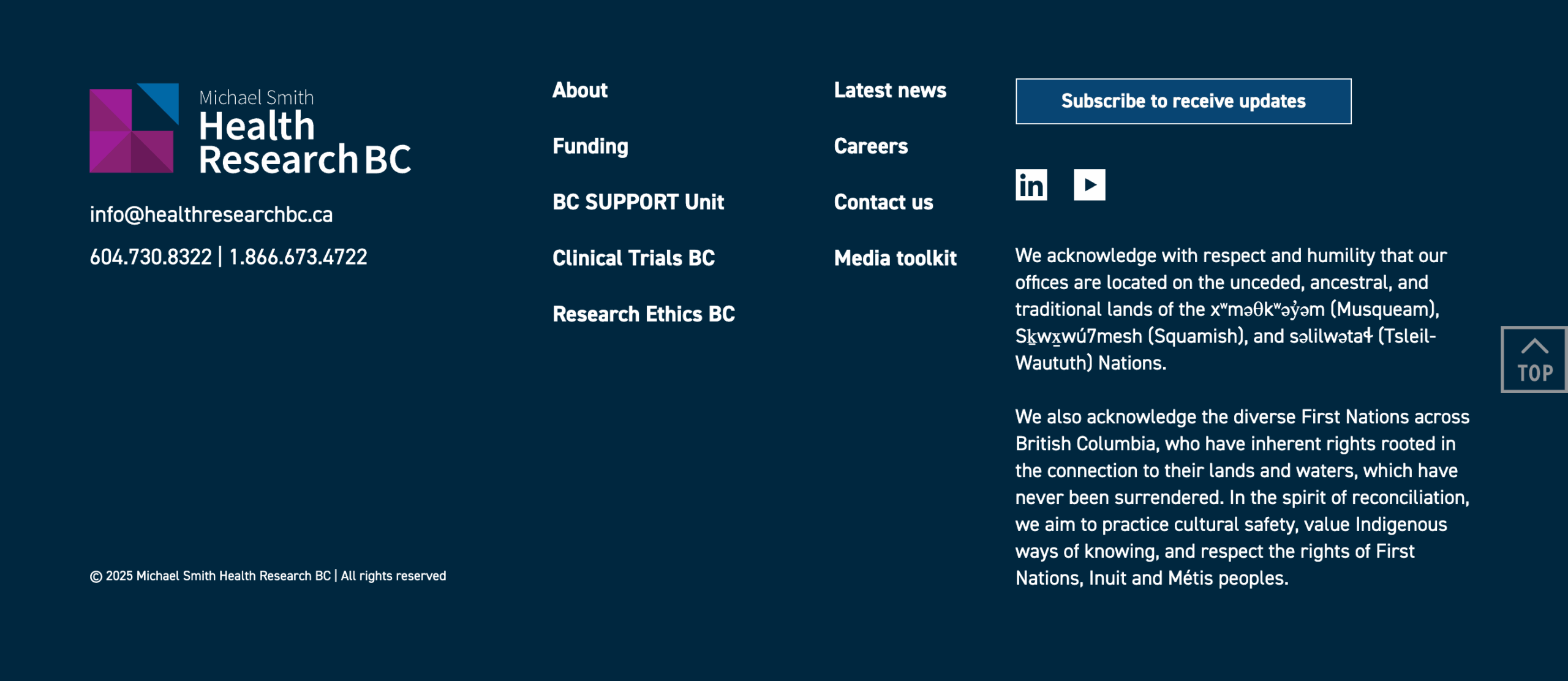
I’m a huge proponent of the “mini-sitemap footer.” What this means is that a user can find all key content by the footer menu – if they get to the bottom of a page and still haven’t found what they were looking for, they don’t have to scroll back up to the main menu.
The website footer is like a lifejacket on a boat, for most users it isn’t important; but when it is needed – it becomes highly important.
A mini-sitemap footer helps your audience understand your site structure, helps them access content, keeps them on the site, and contributes to more conversions.
You can see an example of the mini-sitemap style footer that I designed for Health Research BC. Rather than just showing one layer of navigation links, we show sections and their sub-pages in the footer:
Before
After: Mini-Sitemap footer
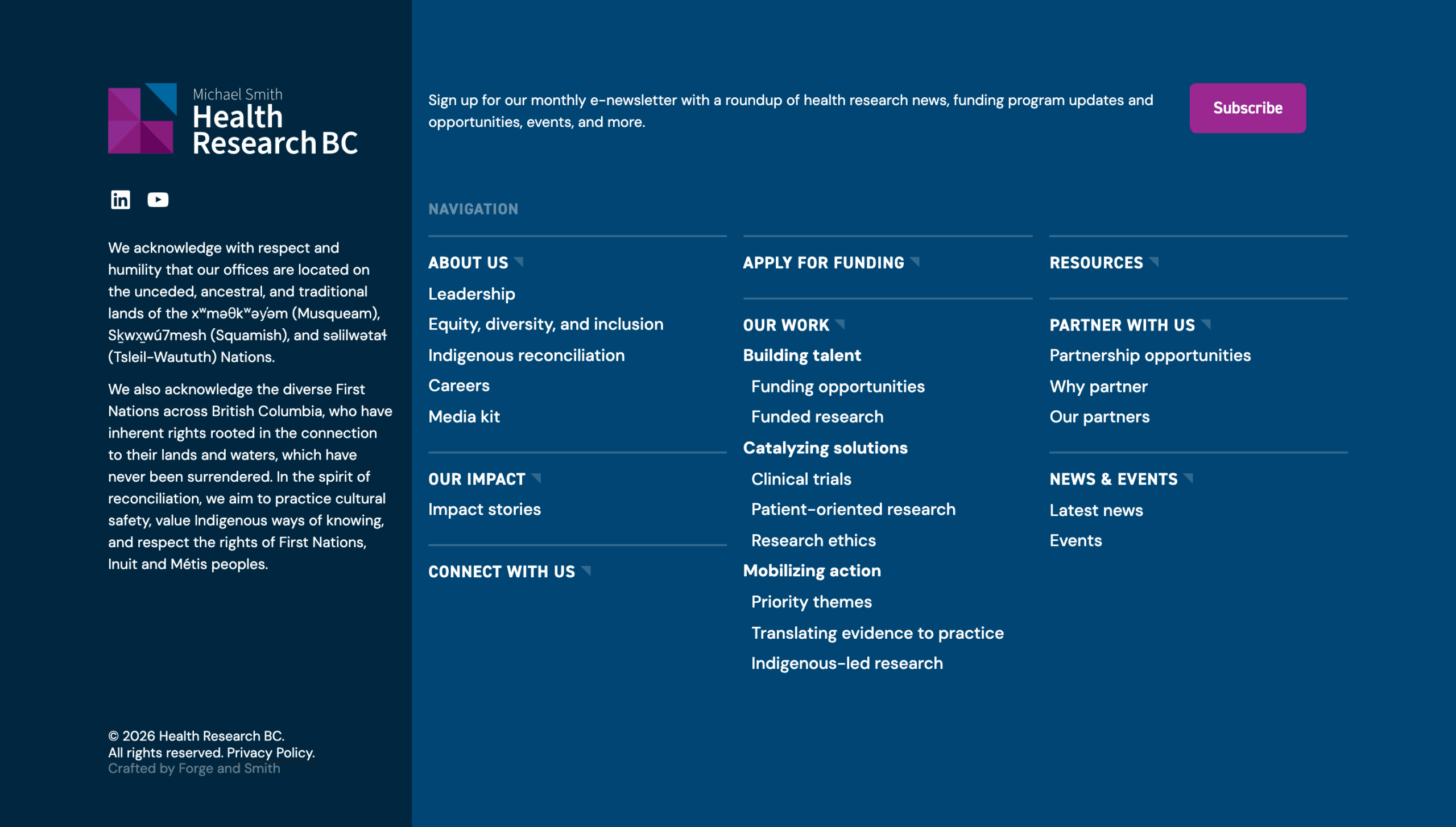
There are a few different kinds of sitemaps that relate to websites. Learn more in HTML Sitemap vs. XML Sitemap: What’s the Difference?
3. Clear and concise content
We always remind our clients during the information architecture and UX stages that your website is not a single journey experience. That applies to paths through the site, and to the people accessing it.
Users arrive at your site with a huge variety of life experiences, with different understandings and comprehension of topics, and with widely varied technical skills, needs, and expectations. They have different time constraints. They might be using a public computer, in a noisy office, or on internet with weak bandwidth. They might be distracted, multi-tasking, or experiencing intense emotions.
They land on pages from any number of sources like a Google search, a link shared by a coworker, or a link from another website.
Website storytelling isn’t like a novel, where the narrative unfolds to a captive audience in a logical order. Users land in the middle, skip forward, and bounce around unpredictably.
With all those variables, your website should be clear and concise, in both layout and content, to be accessible.
Clear
- Phrasing that’s used by your customers, not industry jargon or internal vernacular
- Language that doesn’t have different cultural or generational meanings
- Content that doesn’t require a user to have read other pages for it to make sense (for example, expecting that users have read the homepage before the About page)
- Copy doesn’t include directions about page elements, like “above” or “to the right,” as these can become either incorrect or irrelevant when those elements shift responsively for different screen sizes
- Buttons have text that states exactly what happens when they are clicked – “Learn More” doesn’t provide any context, while “View all Services” is useful
Concise
- Pages contain enough copy to convey the key purpose, and don’t contain a bunch of extra sections that exist only to try to hack search algorithms
- Words aren’t wasted on explaining the interface (things like “click here to read more” and “complete the form below” when it’s easy to tell from the design what each element does – see my guide Phrases to Stop Using on Your Website).
- Paragraphs are no more than two or three sentences, to avoid walls of text that make it easy for users to lose their place
- It doesn’t take a high number of clicks to reach content – clicks are not necessarily bad, but unnecessary clicks are, so each click should take the user further on their intended journey
One thing to keep in mind if you’re reducing content on a page to be more concise: ensure the overall experience doesn’t need another solution, such as an updated layout. Too little copy can cause a whole other set of problems.
4. Scannable headings
Whether it’s your homepage, a service page, or a resource, your headings need use the proper structure and relevant phrasing to aid scanning content.
For BCRPA I strategized smaller (“eyebrow”) headings to introduce sections and enable quick scanning:
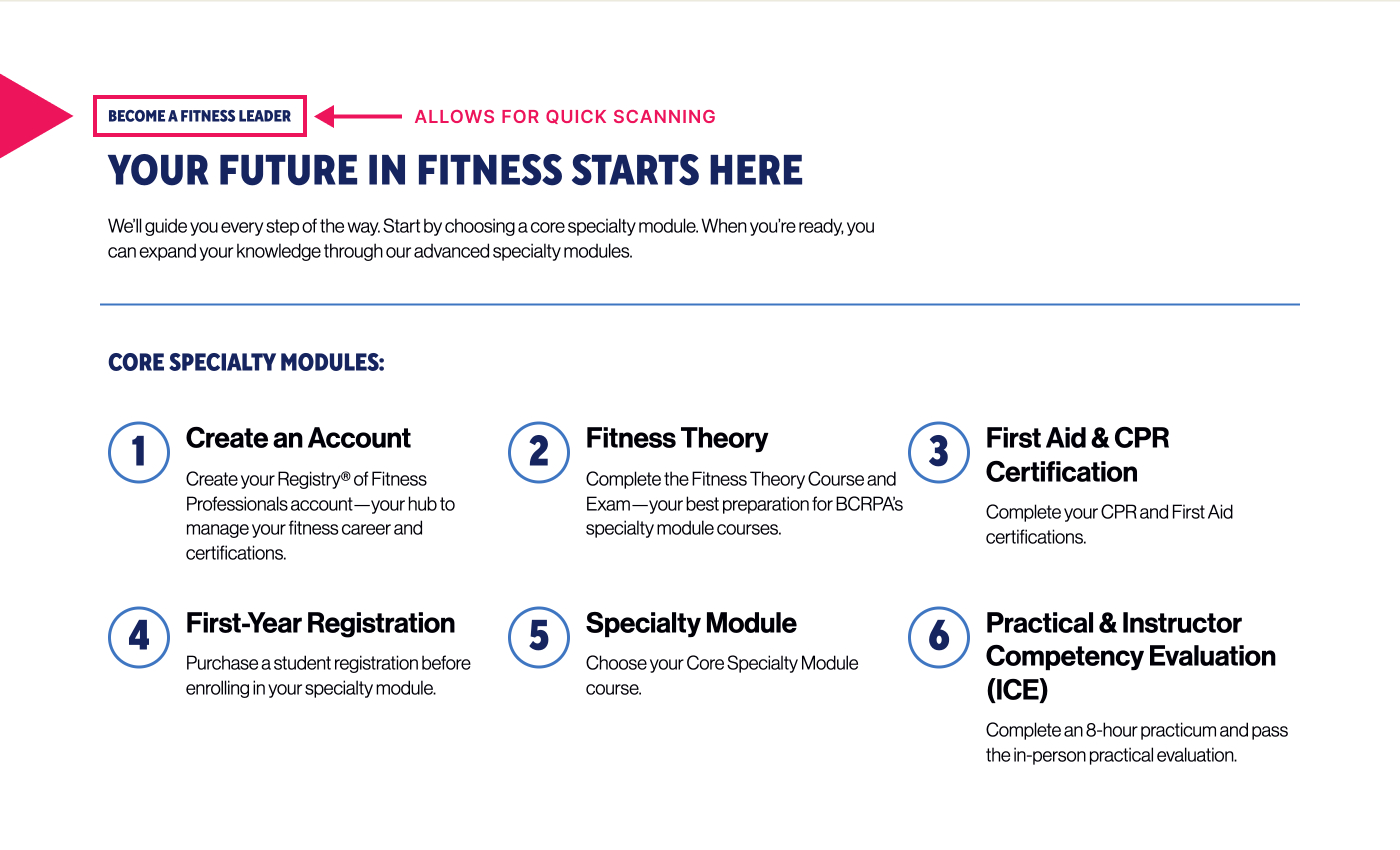
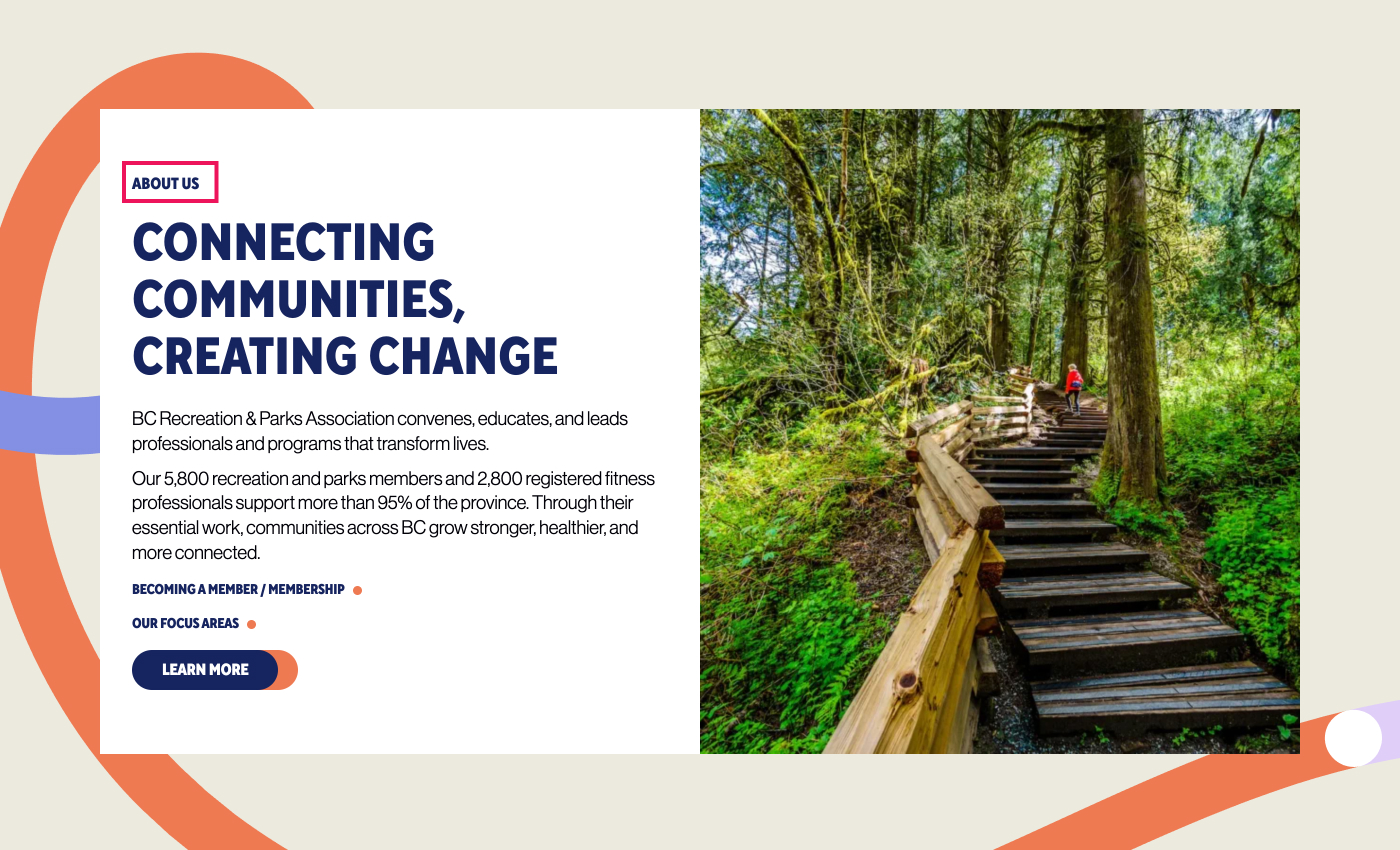
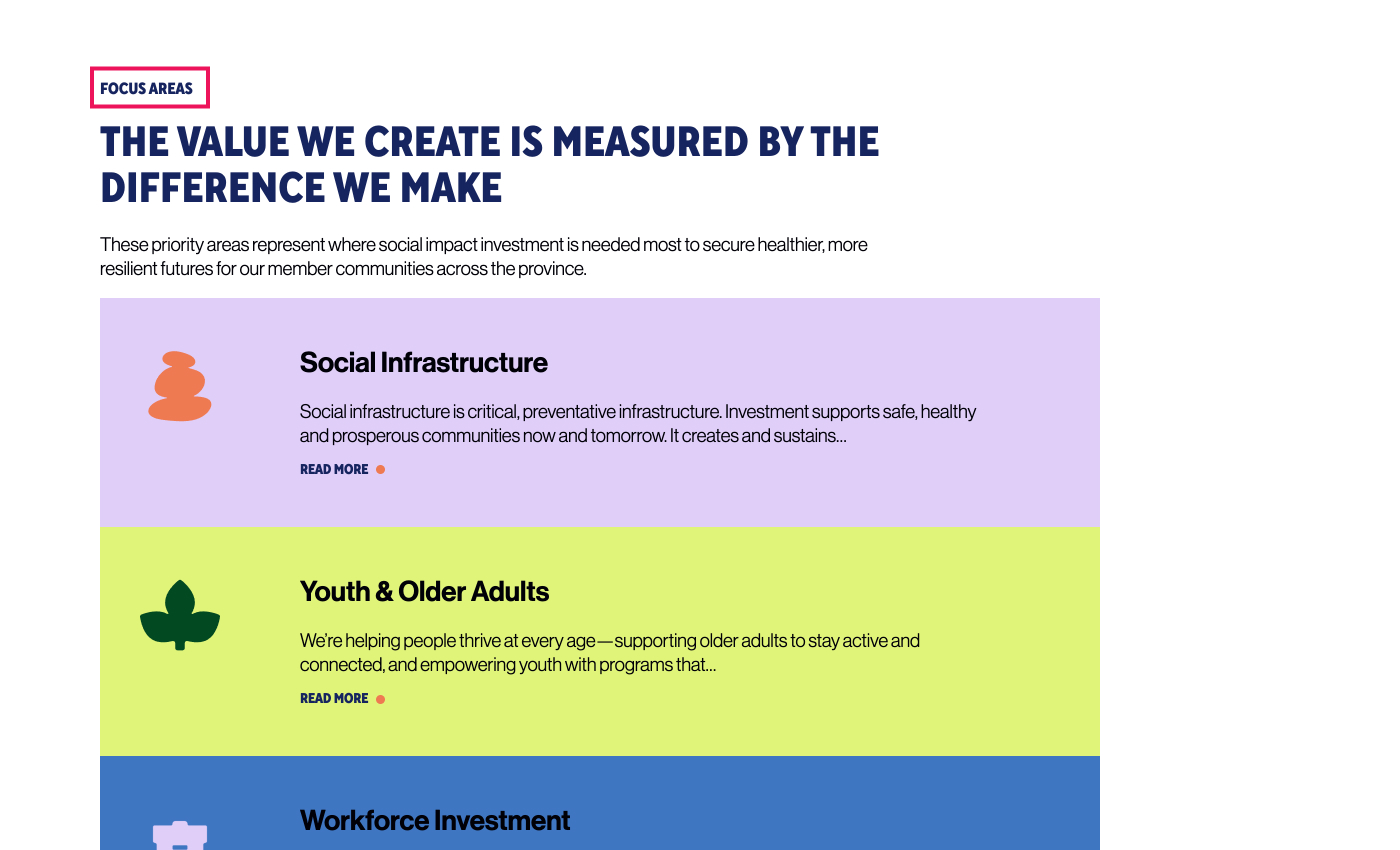
Heading structure is more important than you might know.
- Search engines use heading structure (H1 through H6) to understand the topic of the page and what it covers, to decide if it aligns with a searcher’s intent
- Well-phrased H2 and H3 headings can appear in Google’s featured snippets and ‘People Also Ask’ panels
- Heading structure gives users a visual clue about how sections and sub-sections relate to each other
- Headings help users scan the page and find what they want more quickly
- Clear headings are critical for users navigating pages with screen readers or other assistive technologies
Headings should logically separate ideas into their own sections. They’re a good way to break up long text, such as blog posts, and improve readability. You can have multiple H2-H6 headings, but there should only be one H1 (the page title).
Don’t attempt keyword stuffing on your headings. Google and other search engines don’t fall for that trick, and it can make your content appear spammy and end up hurting your rankings. Also be aware of heading over-use – just because you have six heading styles, doesn’t mean you should use them all.
5. Buttons
A thing should look like a thing. A button should look like a button. Clickable (or tap-able) things should look as such.
Button text is also an important consideration. As with form labels, the copy should be clear and concise. Using language like “Learn more”, “Explore” on buttons (or links) have low value to a user – and when repeated across multiple areas of a site, they become repetitive, irrelevant and even frustrating. Replace these with more active or relevant words, or other design elements to indicate interactivity.
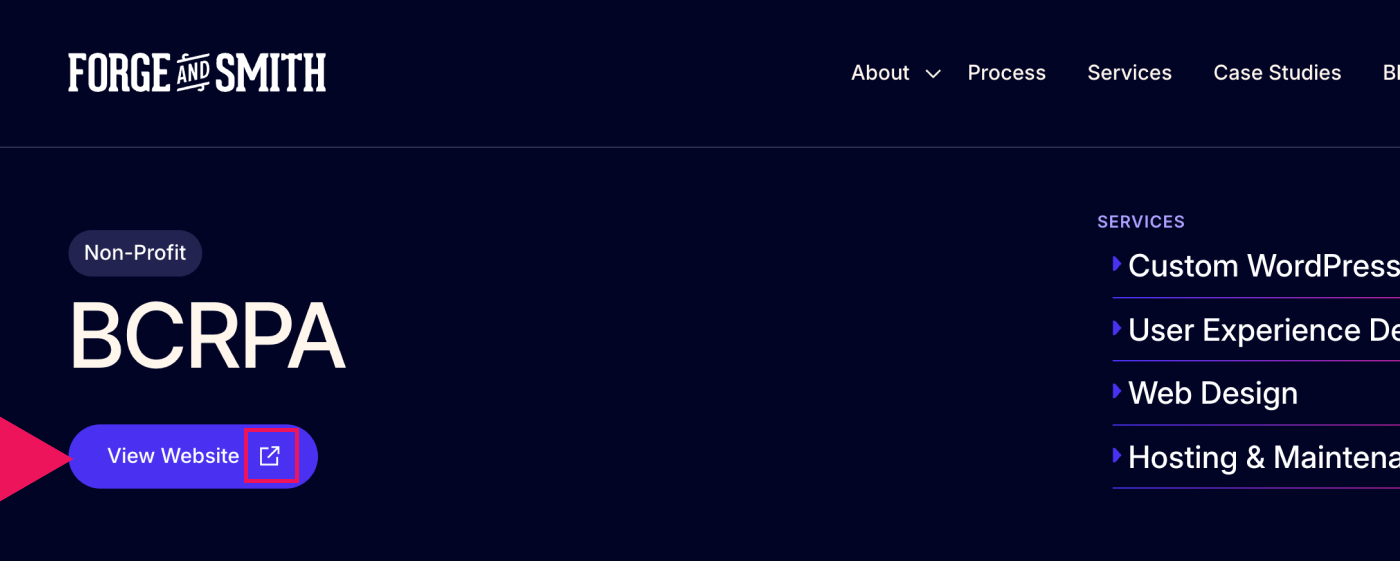
Buttons can also aid a user’s understanding of a website and what the buttons do. We often include a small icon next to links to external websites:
This article touched on the surface of accessibility improvements that you can do on your website. If you want to overhaul your website to make it more accessible, reach out to chat to us. We factor accessibility into consideration at every stage of our website projects.
Share post:

About the Author
More by This Author