This resource is intended to explain image compression, what it does, and what it doesn’t do in relation to page speeds and performance.
What is image compression?
Although it’s often neglected, forgotten, or just unknown to website owners, image compression can have a huge impact on file size. Correctly sizing your images and performing image compression can vastly improve how quickly pages load.
Any single image file should never be over 1MB in size. If it is, there are likely image sizing or compression issues (or both). The optimal file size should be well under 600kb, ideally in the range of 40-400kb.
How does it work?
Image compression reduces an image’s file size by removing bits of information from the file based on its algorithm and level of compression. The higher the compression, the more colour information lost (but smaller file size), and vice versa.
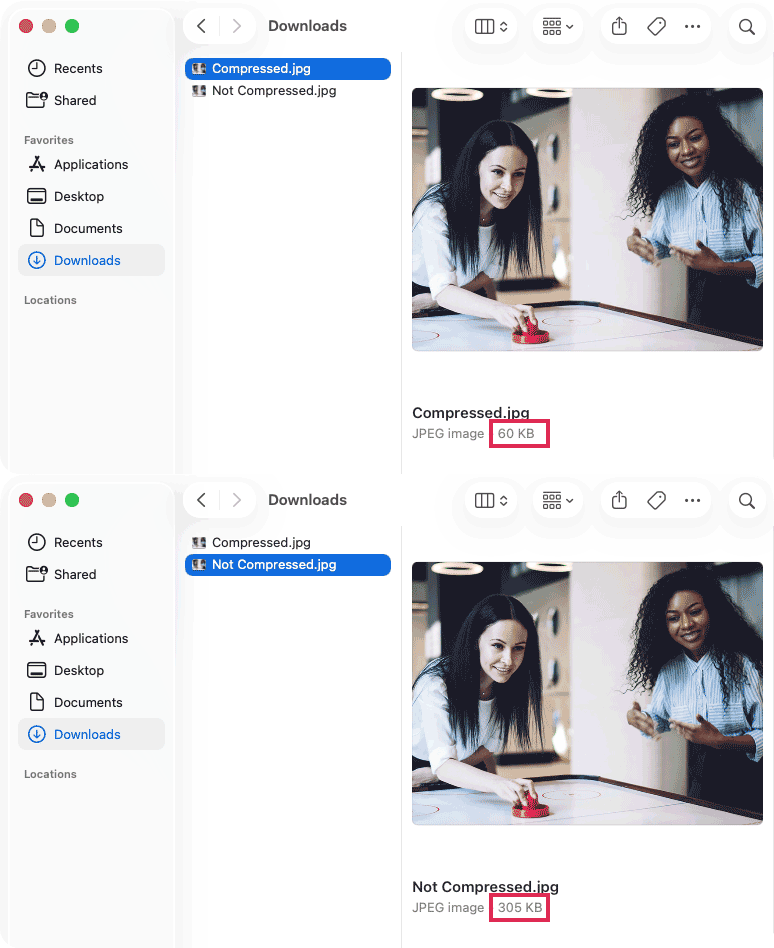
Compression does not affect the number of pixels in an image, only the file size.
As an example, this 800 x 600px image can be 60kb compressed compared to 305kb as an uncompressed JPG—a 500% increase in file size.
Compression options
JPG, PNG and SVG files all support image compression in some way. Generally SVG images are small enough to not need compression (when setup correctly)—so this article won’t cover those.
Compressing images before uploading has several benefits:
- Storage Space: Your hosting has a limit. Uploading large images will fill that space quickly – and affect performance.
- Upload Speed: It’s much faster for you to upload a 200kb image than a 5MB photo.
- Compatibility: The compression plugin is only a safety net and may not be able to work with all image files (especially different formats).
1. Use Image Editing Apps like Photoshop
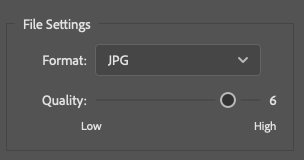
If you’re sizing/cropping images and already using an image editing tool, you can often set the compression before exporting your image.
We recommend setting it at around 6—some apps use percentage, so 60%. We find this is the right balance between images looking crisp while keeping file size light for speedy performance on the web.
2. Recommended Compression Tool
Running your images through a compression tool that’s specifically built to output web-friendly files is your best bet, even if you have already compressed your images using an image editing app. It can shave up to 80% or more off the file size.
Your images can be run through these compression tools before uploading:
Backup: Compression Plugin
We run a compression plugin as part of our pre-launch performance optimization work. This plugin is a safety net to catch any uncompressed images (or any that might need a bit more compression), and runs additional compression. But it works best when the starting image is already in an optimal format.