This resource is intended to help you understand banner sections, and select high-quality, appealing images or videos for your website’s banners.
You might also hear it called a ‘hero’ or ‘header’ area. It’s the space across the top of a page, containing the page title. There might also be supporting text and a button or two, depending on the design you choose.
The banner can help set the tone for the page, especially if it showcases authentic photography that evokes an emotional reaction, such as a striking project, or community members participating in a program. Some sites use a video instead of an image. Other sites don’t use any media, and instead use a coloured background or pattern.
We start planning the banner design at the UX prototype stage. It looks like this:
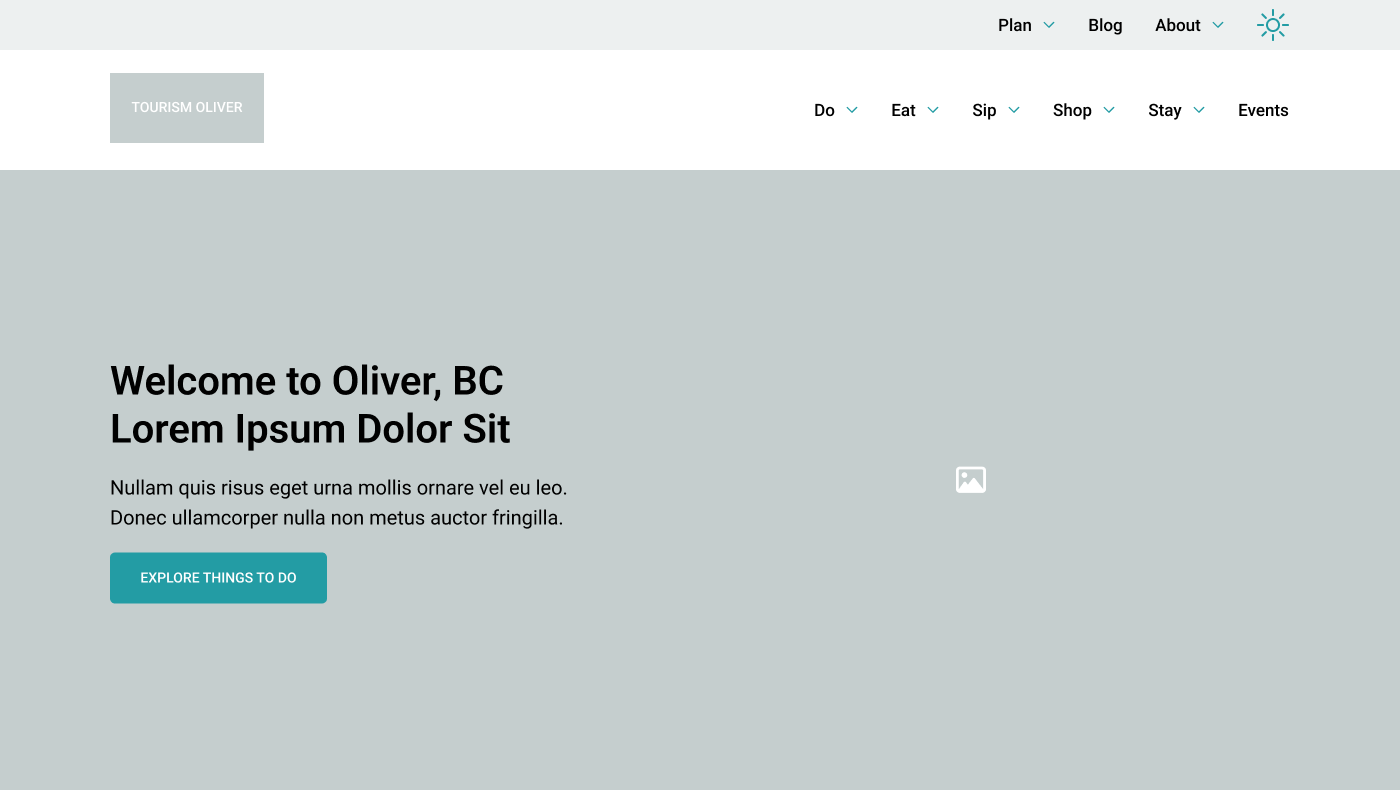

Some examples of banners on live websites:
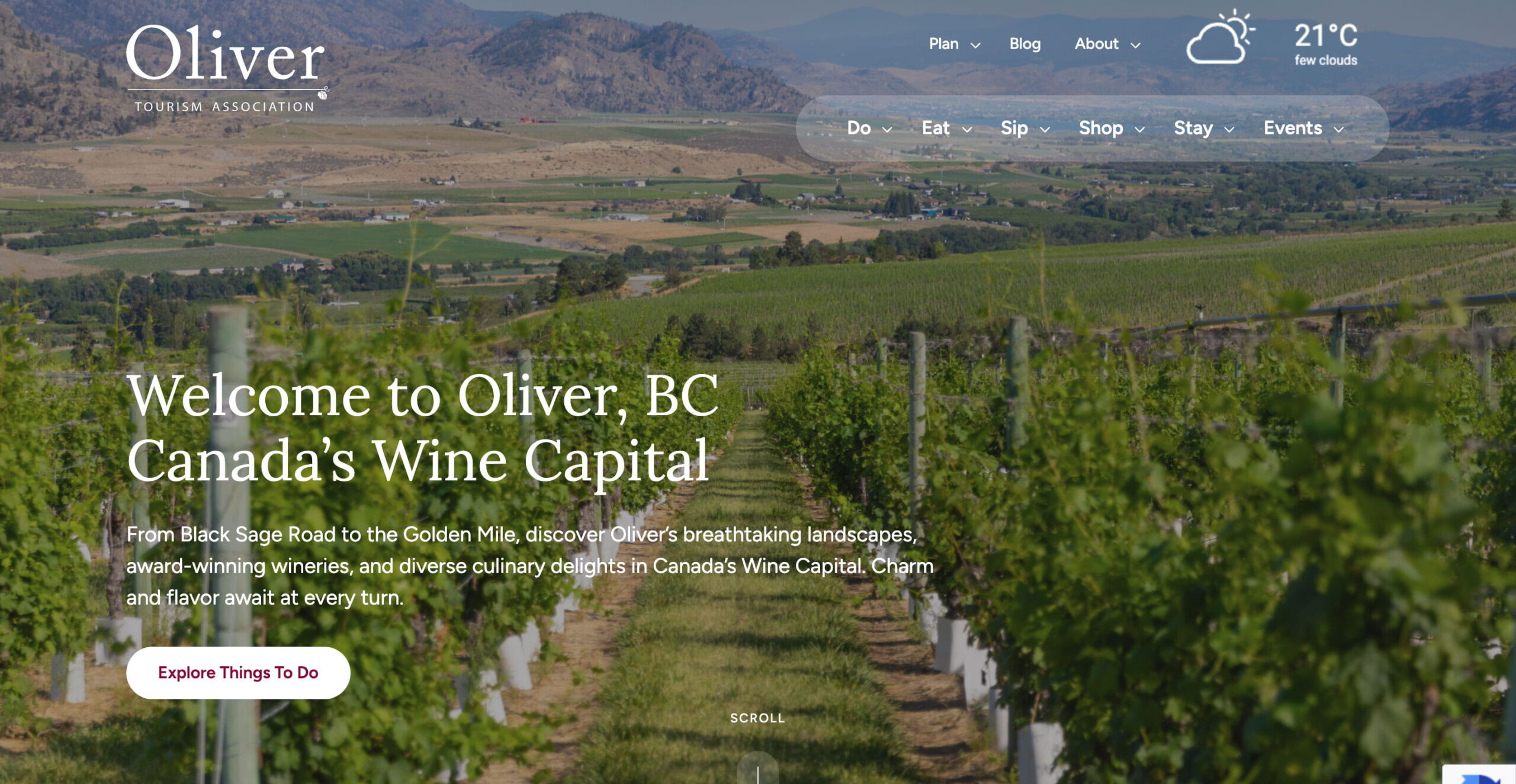
Oliver Tourism has a full-width image with text (and navigation) overlaid over it.

Xradar uses the banner image in a frame on the right side.
1. The Rule of 50%
The ideal banner image is one where the subject takes up 50% the space (at most) in both height and width. The other half of the image is the background or ‘negative’ space in the photo.
This rule is necessary for responsive websites (which are what we build), where image frames resize to suit the screen that a visitor is using. The 50% rule also allows space for overlaid text, like the page title, which can appear over different parts of the image when viewed on various browser widths.
If key elements are at the edges of an image, or spaced throughout, there’s a good chance that at least one of them will get cut off when the image frame shifts responsively. Setting a focal point can help avoid this as much as possible, but without ‘The Rule of 50%’ some important content may still end up being cropped off.
🚫 Not recommended

If this image is cropped responsively, a subject’s face is likely going to be cut off or partly cropped
✅ Good

There is one key subject in this image, which allows the focal point to be set. If the photo gets cropped closely, the image still works.
2. Avoid Busy Images
‘Less is more’ is a great approach in choosing your banner images. Images with a lot of details, faces, or elements add complexity and, potentially, problems with legibility.
If your website banner has a text overlay, a complex or busy image will make it harder to read that text. This includes any text within the image itself, like showing signage or a logo. In-image text is also an accessibility issue, because the words can’t be detected by screen readers and other assistive devices. Some in-image text is unavoidable (like product labels), but try to keep it to a minimum.
🚫 Not recommended

- This image is nice, but not the most suitable for a banner image
- Not possible to overlay text over the image
✅ Good

- Ample space for text to be overlayed (if that is part of the design)
- Doesn’t compete visually with important page content
Tip: The main purpose of a banner image is to set the tone for the page. The page body content can cover all of the key details, like showcasing more complex photos, diagrams, charts, or event posters.
3. Choose a Quality Image
Photos used in your banner should be the right size to ensure that it looks good on any device. You can use our resource on image sizing to ensure you have the right resolution.
As with other images on your site, you should have the right permissions and licensing to use the image before uploading.
Tip: Avoid using ‘banner’ in the filename of your images. Some ad-blockers will flag them as banner ads and hide them (‘hero’ or ‘header image’ are possible alternatives).
If you want to use a video instead of an image for a specific page banner, the same guidelines above apply, plus these considerations:
- Choose a short clip (under 10 seconds ideally)
- A video that seamlessly loops will generally work best in headers
- Host video content on Vimeo or YouTube to avoid massive on-site files that slow down the page load time
- Video sound should be set to mute if auto-playing (this can be done through Refoundry settings)
- Be aware that there’s always an decrease in page speed with auto-play videos